- Product

- Pricing
- Affiliate Program
- Use Cases
- Resource
 EN
EN
Instagram's feed is seeing a surge in demand for ultra-wide horizontal Reels in the 32:9 format — narrow videos with a resolution of 5120×1080 pixels, seamlessly integrated into the traditional vertical scroll. These videos resemble cinematic panoramas and stand out dramatically among standard vertical posts.
This format isn’t an official Instagram feature but rather a creative trend crafted manually using video editing software. Initially adopted by videographers, vloggers, and music video creators, it quickly caught the attention of influencers, brands, and advertising agencies.
In this guide, we’ll show you how to create horizontal 32:9 Reels for Instagram and tap into this trending visual style.
Compared to standard vertical Reels, the new 5120×1080 format (aspect ratio 32:9) immediately grabs attention due to its unusual and cinematic presentation. It interrupts the scroll and encourages users to stop and watch.
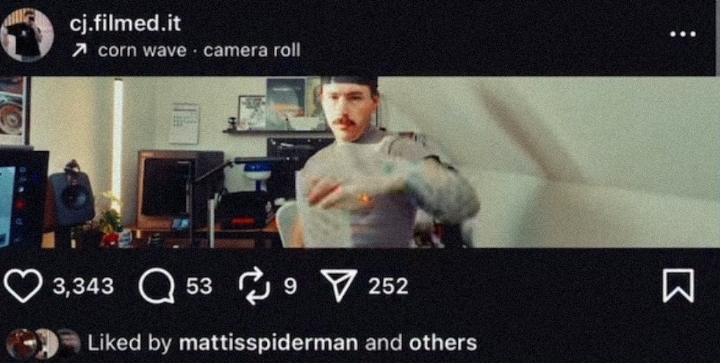
Cinematic Screen Effect
The 32:9 ratio evokes the feel of a widescreen movie trailer. Even a simple clip — like a drone shot of a road — looks film-like and dramatic in this format.
More Detail in One Frame
The wide frame allows for showcasing multiple subjects simultaneously or displaying “before and after” scenes side by side. It’s ideal for travel, architecture, and lifestyle content.
Instagram’s 2025 Algorithm Supports It
In 2025, Instagram updated its ranking algorithm: horizontal Reels now get the same reach as vertical ones. This opens new creative opportunities without penalty in exposure.
You can apply this format across a variety of content types:
Panoramic landscapes and drone footage
Timelapse travel scenes
Sports highlights and concert clips
Interior design and architecture
Side-by-side “before and after” comparisons
Use any video editor like SUPA, Canva, or free alternatives. If you're not using a VPN, access tools via the MoreLogin browser for full functionality.
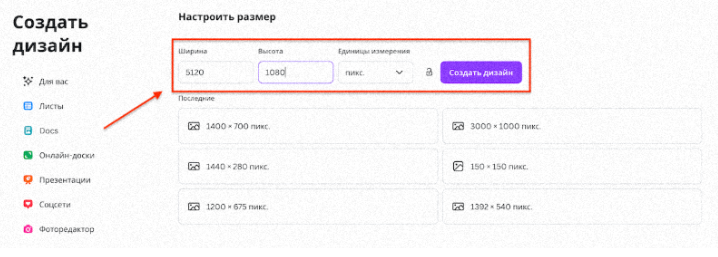
Create a template with dimensions 5120×1080 pixels, the standard for a 32:9 widescreen video.
Tip: If manual input isn’t supported, select “Custom Size” and enter the resolution.
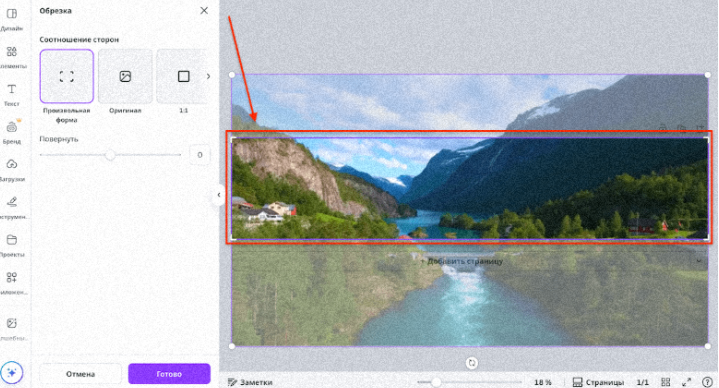
Import your video and center it in the frame to avoid cropping the key parts.
If your footage is vertical, use two copies: blur the background layer to create visual balance.
Add bold, central text — it must remain readable on mobile devices.
Keep each scene 2–3 seconds long so the viewer can take in the details without losing focus.
Export your final video in MP4 format at 5120×1080 resolution.
Upload directly to Reels. Instagram will adapt the video to the vertical feed while preserving the wide view.
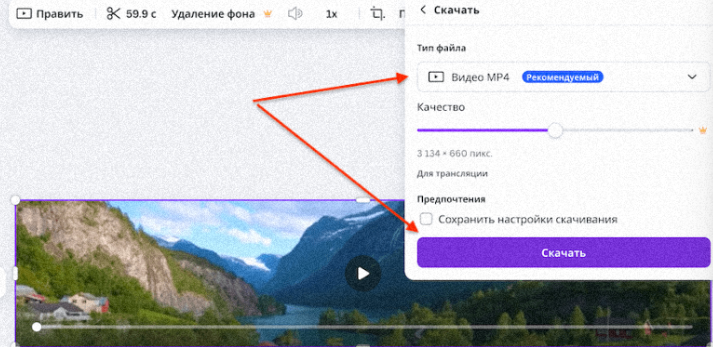
Sometimes Instagram adds black borders when uploading 5120×1080 videos because it doesn’t match the vertical feed standard. You can avoid this issue by:
Exporting directly from your editing software with 5120×1080 settings.
Uploading immediately to Reels instead of saving to your phone.
Embedding the video in a vertical project (1080×1920): scale it vertically and use a soft blurred background above and below using duplicated layers. This keeps the widescreen feel while eliminating visible bars.
Using mobile editors like CapCut or iPhone editing tools: trim to ultra-wide and export directly. However, desktop editing is more reliable for precision and quality.
The 5120×1080 format started gaining traction in summer 2025, first among musicians and travel vloggers. TikTok and YouTube Shorts soon followed, but Instagram saw the most striking results — thanks to the contrast with its default vertical format.
The key reason this format went viral is its ability to break the visual rhythm of the vertical feed. The narrow 32:9 cinematic look instantly captures attention and makes your content stand out.
You can create this effect with nearly any editor — from professional tools like Premiere Pro, DaVinci Resolve, and Final Cut Pro, to easier platforms like SUPA, CapCut, Canva, or VN.

 EN
EN